
Pushing Salesforce translations without a review process is a production risk. Metadata Translation Jobs add approval, governance, and multi-org deployment control so nothing goes live before it is ready.
Job Types
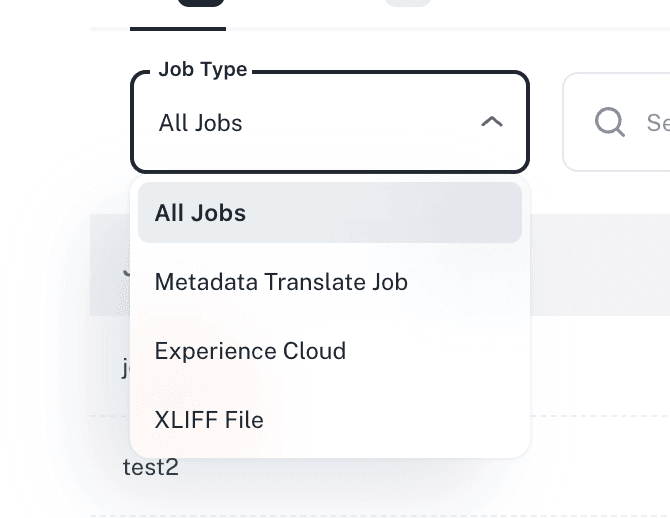
There are three types of jobs depending on what you are translating:
Standard Metadata Job: handles Salesforce metadata such as custom labels, field labels, picklist values, and validation rule messages. Once approved, translations deploy directly to one or more Salesforce org credentials.
Experience Cloud Job: translates content from Salesforce Experience Cloud sites. There is no direct deployment. Approved translations are exported as an XML file which you then import manually.
XLIFF File Job: works with uploaded XLIFF files. Approved translations export as a ZIP archive containing one XLIFF file per language.
Creating a Job
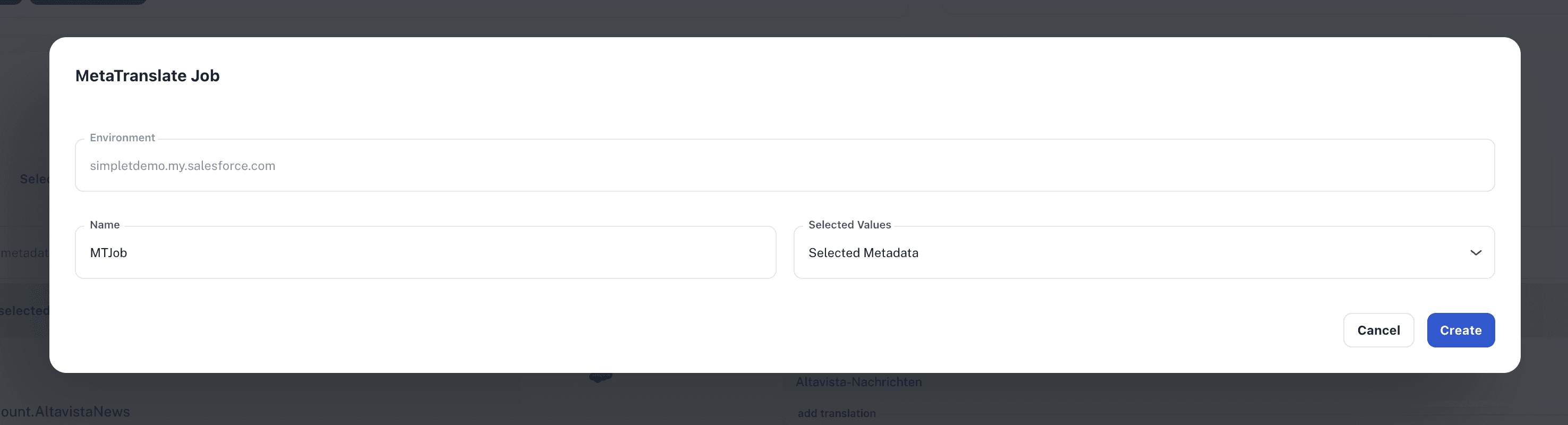
From the Metadata Translator screen, select the metadata items and target languages you want to work with, then open the "Create MetaTranslate Job" dialog. Give the job a name and choose whether to include the selected metadata or start with an empty job.
Once created, the job takes an isolated snapshot of your selected content. Any changes made to the source metadata after that point do not affect the job.
The Job Details View
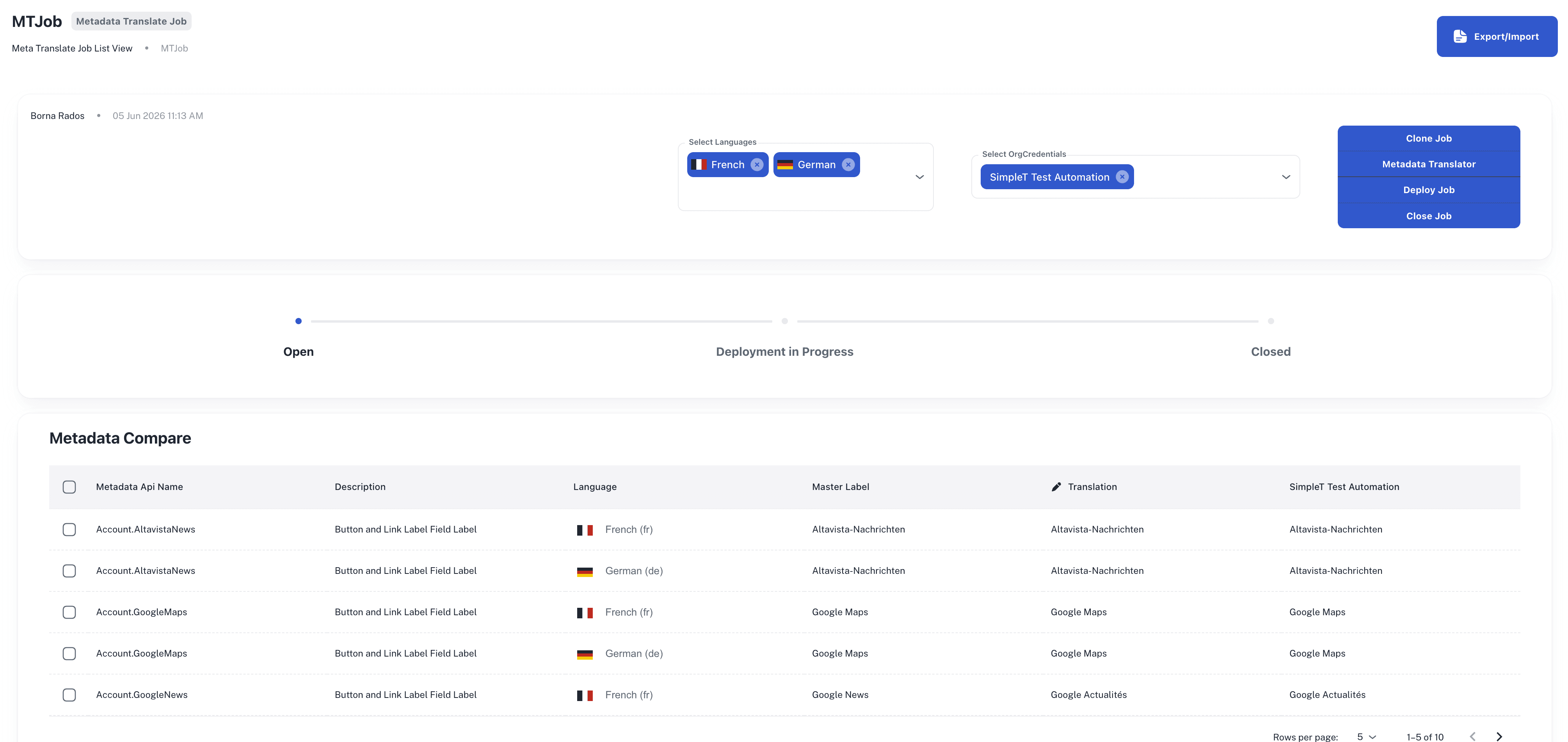
The main view is a Metadata Compare table. It shows every metadata item crossed with every language in the job. You can see the original Salesforce value, edit the translation inline, and compare it side by side against what is currently deployed in each connected org.
The table supports filtering, sorting, and pagination so it stays usable even for large jobs.
Adding and Removing Items
While a job is in Open status, you can add more metadata items to it at any time. To remove items, select them and use the Remove from Job action.
Lifecycle and Approval
Every job moves through a defined set of states: Open, Approval In Progress, Approved, Deployment In Progress, and Closed. Jobs can be reopened after closing.
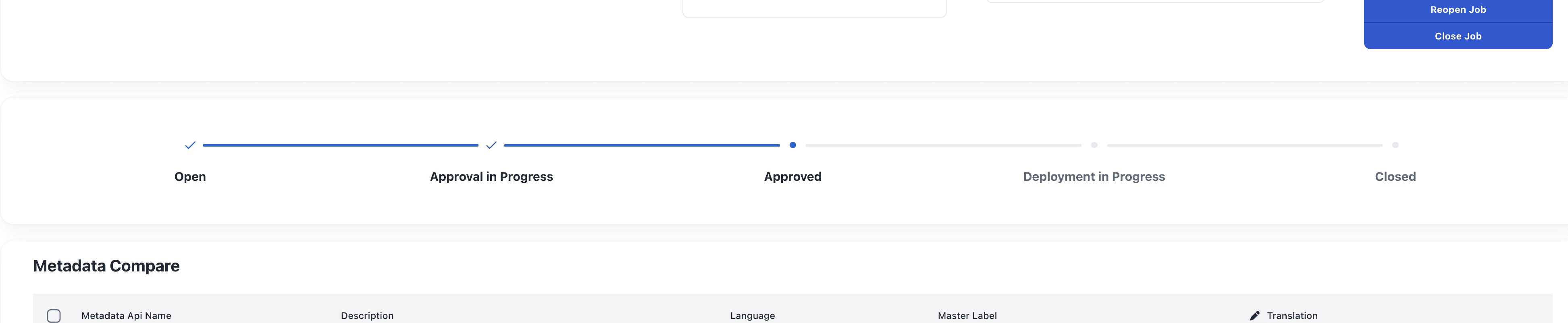
If your organization has the approval process enabled, an Open job will show a Submit Approval button. Submitting it notifies each assigned approver by email with a direct link to the job. Approvers can only act on the languages assigned to them. Once all assigned languages are approved, the job automatically moves to Approved status.
If no approvers are configured for any language in the job, the approval step is skipped entirely and the job advances straight to Approved.
Pre-Deploy Check
Before anything is deployed, SimpleTranslate runs a pre-deploy check against every target org. It compares the job content against what exists in each org and flags any missing components by their exact API names. You can either skip the missing components and deploy what exists, or hold the deployment until the issue is resolved.
Deployment and Export
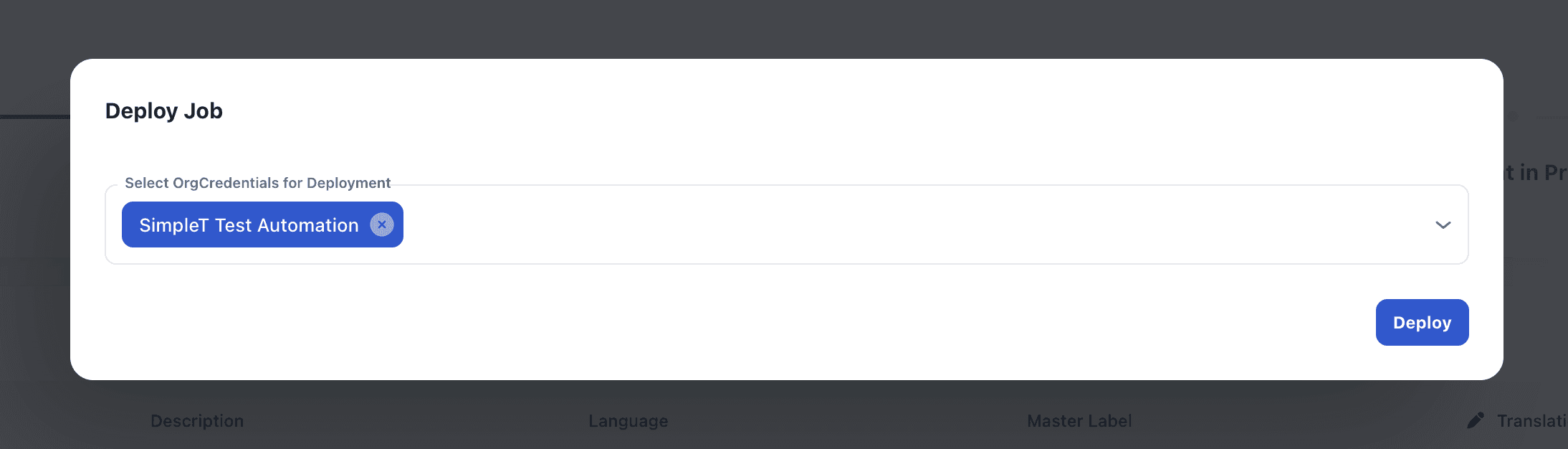
For Standard Metadata Jobs, clicking Deploy Job kicks off background deployment to each connected org simultaneously. Each org tracks its own deployment status independently.
For Experience Cloud and XLIFF jobs, an Export button appears once the job is approved. Experience Cloud exports an XML file. XLIFF jobs export a ZIP archive with one file per language.
Exporting and Importing Translations
On Open and Approval In Progress jobs, you can export all translations to CSV or XLS, edit them externally, and re-import. The table refreshes immediately after import, which is useful for bulk editing or handing off to an external translator.
Cloning a Job
Any job can be cloned. When cloning, you pick a new name, select a source org credential, and choose which languages to include. The clone copies all current translated values and opens immediately. This is the recommended way to adapt an existing job to a different org or a subset of languages without starting from scratch.
[image: screenshot of the Clone Job dialog showing name, source org, and language selection fields]
Retrieving Fresh Metadata
Each connected org credential has a Retrieve button in the toolbar. Use it to pull the latest metadata from Salesforce directly inside the job without leaving the page.
Role Based Access
Access is controlled at three levels. VIEW allows read only access. MANAGE allows creating, updating, deleting, and deploying. A deployer whitelist per environment controls exactly who can push to which org. The translator role is explicitly blocked from deploying.
Published:
2026-06-05
Back to the Articles List